The Content Database Support and Remote BLOB Storage Myth
There’s a popular myth that keeps popping up that I wanted to post about.
Why is it so popular? Well, because it seems intuitive if you aren’t working with SharePoint on a regular basis. If you are then I’m sure you don’t think this… and if you did, well shortly you’ll know the truth.
So here’s the myth “We don’t need to split our content across separate content databases because if we need more than 200GB support for each database we will [1] move subsites around to different site collections in different databases or [2] use remote blob storage and put it all on file shares… then we’ll have a very small content database size.”
Architectural Mistakes to Avoid #1 - Interstate Stretched Farm
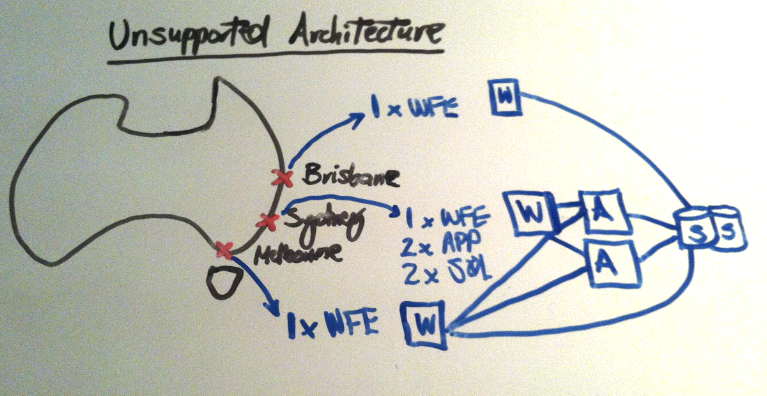
In discussions with IT Pro’s at client sites, a few times I have seen them start off designing their farm to handle performance requirements for interstate users (e.g. Brisbane, Sydney, Melbourne) by having the core of the farm in Sydney, and then one web front end in Brisbane and another in Melbourne. Essentially an architecture that looks like this:
What’s the challenge here?
The challenge is that technically it won’t be supported by Microsoft, because what has essentially been created here is a stretched farm, that has a packet latency of > 1ms between the WFEs (W), App Servers (A) and SQL Servers (S). So why isn’t an environment like this supported? Because it will cause performance problems, as all the internal farm servers need to communicate with one another quickly. To get an idea for how significant the performance will be degraded, the typical statistic quoted is 50% per 1ms delay, ouch!
Runas - With an Account from Another Domain
Ever wanted to be able to access a client’s backend data source using Windows Authentication, but your machine wasn’t a member of their domain?
For example – you might be working with a client that can’t provide you with a client machine that has Excel or InfoPath, but you need to access data in SQL.
The usual problem I’ve run into is this – If I’m using my local Excel or InfoPath client, when attempting to add a new data connection, you get prompted with a screen such as that below. Selecting Windows Authentication will use your local machine credentials and won’t work. The Username and Password box as we all know are for SQL authentication.
FAST Search for SharePoint 2010 - Indexing Database Content - Guidance
If you are doing any work with FAST Search for SharePoint 2010 and need to index database content (e.g. SQL tables), as a general rule of thumb you should use BCS for this.
FS4SP does have a JDBC connector that is quite capable of indexing database content, though don’t just use this because you have FAST and think you need to.
The reason here is simple - you will have a much simpler migration experience to SharePoint 2013, as the JDBC connector is now no longer included.
Unsupported Installation Scenarios on SP2013
Understanding the scenarios in which SharePoint is not supported are extremely important when designing SharePoint farms; as if you experience any trouble with your environment and need to get Microsoft support involved, they typically won’t be able to help you, and will instead ask you to get your environment in a supported state.
On SP2013 it is important to note that these scenarios are not supported:
-
Installation on a machine that is not joined to a domain (i.e. a machine in a workgroup)
Can't Delete List Field?
Recently I had to help someone that wasn’t able to delete a field off a list!
Seemed a bit strange I thought.. just go and delete it :)
Well in this case there was a catch - it was sealed. One of their developers had deployed a custom feature containing list fields and had set this particular one to sealed.
This was reasonably easy to figure out by opening up SharePoint Manager 2010 (SPM2010).
Fixing A Broken Page – Tip #1
If you add a web part to a page and it wasn’t written correctly you may experience an issue where the whole page doesn’t load.
When this happens, the simplest way to solve the issue is to perform the following steps:
-
Add the string ?contents=1 to the URL of the broken page – e.g. http://intranet/pages/default.aspx?contents=1
-
This will take you to the Web Part Maintenance page. Once the page has loaded, look for the web part that you think is causing the error. In most cases, it will actually display Error in the web part name.
Fixing A Broken SharePoint Site
If you’re ever working with a site that just won’t load and you don’t know it’s structure, you can (if it isn’t severely busted) still attempt to access other pages by manually navigating to the “View All Site Content” page, by adding ** _layouts/viewlsts.aspx** to the end of the site URL.
E.g. http://intranet/_layouts/viewlsts.aspx
If you still have troubles with the site, then you can attempt to navigate to the site settings page and modify the settings that might be causing the issue by adding** _layouts/viewlsts.aspx** to the end of the site URL:
How To Remove InfoPath Branding
Have you ever wanted to remove the annoying “Powered by InfoPath” logo that users see when accessing InfoPath forms in the browser?
The good news is that this is pretty straightforward. Just follow these simple steps:
-
Log on to one of the servers in the SharePoint farm (e.g. an App Server)
-
Run the following command: stsadm -o setformsserviceproperty -pn AllowBranding -pv false
Enjoy!
How To Delete the SSP on SP2007
On SharePoint 2007 every now and then you may have a need to delete the SSP so that you can then recreate it.
The trouble is that deleting it through the UI isn’t very reliable. However, it is reasonably straightforward to do so using stsadm, using the following command line syntax: stsadm -o deletessp -title “[SSP Title]” -force -deletedatabases
For example: stsadm -o deletessp -title “SSP01″ -force -deletedatabases